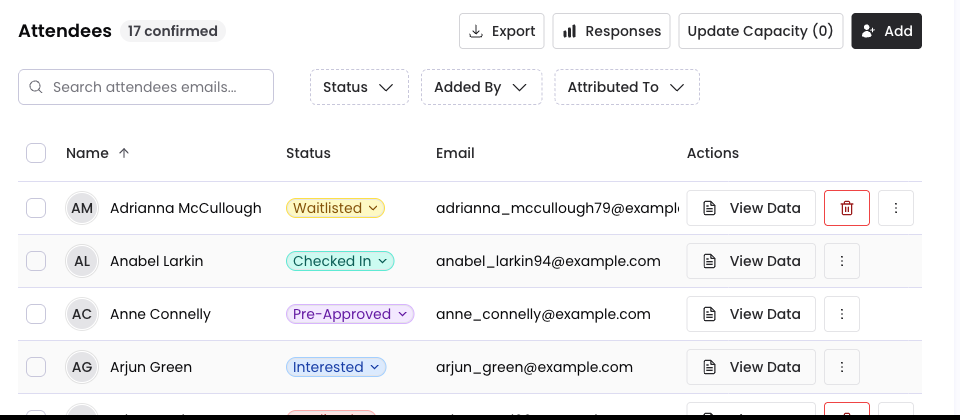
Everyone who registers or is added to your event appears on the event's Attendees tab.
Who can manage attendees
The primary host, members of the primary host's organization, and confirmed co-hosts and sponsors. Co-hosts and sponsors see this tab once a host has confirmed them.
Attendee statuses
| Status | What it means | How someone gets it |
|---|---|---|
| Interested | Registered and waiting for a host to approve | Registers on the event page |
| Pre-Approved | A host added them. They are confirmed as soon as they register. | Added by a host |
| Confirmed | Has a seat | Approved by a host, or registers after being pre-approved |
| Waitlisted | Registered after the event was full | Registers when the event is at capacity, or moved by a host |
| Declined | Not attending | A host declines them, or they cancel |
| Checked In | Arrived | Checks themselves in, or a host checks them in |
Approve or change a status
Select the status on an attendee's row and choose the new one. To change several at once, tick their checkboxes and choose the new status. Before a bulk change goes through, you see who it affects and whether anyone will be emailed, then select Confirm & Send.
Attendees are emailed when they are confirmed, waitlisted or declined.
Find people
Search by name or email, or filter by Status, Added By (which organization added them) and Attributed To (whose link they registered through). Sort by any column, including company, title and registration date.
See what someone told you
Select View Data on a row to see their registration details and answers to your questions. You can correct a typo in their name, company or title. Their email cannot be changed, and details they set on their own Freshmint profile can only be changed by them.
Select Responses above the table for a summary of everyone's answers.
Show attendees on the event page
The event page can show a Who's Coming section. On the Attendees tab, choose which attendees appear in it. It shows each person's first name, last initial and company, never their email.
Turn an attendee into a co-host or sponsor
If someone on your list should be a partner instead, open their row menu and choose Convert to Sponsor or Convert to Co-host. They move to the Hosts tab, keep their registration, and are emailed about their new access. Co-hosts can convert attendees to sponsors. Only the primary host can convert someone to a co-host. See Co-hosts and sponsors: what each role can do.
Remove an attendee
Use the delete button or the row menu. Removing deletes their registration for this event.
Export the list
Select Export to download a CSV. It has first name, last name, email, phone, company, title, status, registration date, who referred them and who added them, plus one column for each of your registration questions.
Common questions
Do I have to approve everyone? Registrations from the event page arrive as Interested and wait for you. People you add yourself are pre-approved and confirmed when they register.
Can I add people myself? Yes. See Add attendees.
Still need help?
Email support@freshmint.ai or use the form in the help center. A person on the Freshmint team reads every message.
Contact support